Address book (Email) Alert Capabilities
Alert Email is a new and somewhat complicated topic. If we look at each component of the Alert process it can be simplified and easily understood.
Simply put... Alert Email is the capability to automatically send Email messages to other users (recipients) when certain storm forecast criteria are met.
Lets go through each step in order to understand this function better.
1. You must have Microsoft Outlook or for Hurrtrak native e-mail support a SMTP Internet Email server available to you. To define your preferred e-mail method, go to the Email General Options and for native support to define your system's Email server parameters. For Hurrtrak native support you should be able to pull the SMTP server option from the settings on your current Email program or obtain them from your network administrator.
2. You must define the users you want to have the ability to send ALERT Email messages to. This is also required for MS Outlook addressbook entries due to the additional alert data fields that must be associated with this entry. Go to the Addressbook Options and define your users/recipients and your user groups.
3. In the Automation/Alert options, Alert/Summary Rpt. Active Storms Tab, "check" the "Alert Automation" option. This turns on the global capability to send Alert Email.
4. Also in the Automation/Alert Options, Alert Tab, add the storm names for the storms you would like to send Alerts for and set their indicator as active. You may want to predefine these name for the entire season and then activate/deactivate them as needed. The only alert that does not require an entry in this table is the New Storm alert (see #8 below).
5. Alerts are automatically examined whenever "new data" arrives into the system via the HURRTRAK ONLINE service. In Automation/Alert options, Advanced Tab, you need to specify what your minimal requirements are that define "new data". In other words, which NHC advisory data must arrive before initiating Alert Email. We recommend the minimal selection be the Public Advisory, the Forecast Advisory, and the Intermediate Public Advisory. These advisories contain the critical current and forecast information. Be aware that selecting all of the advisories may result in a delay of any automated processing as the system waits for all of the advisories to become available. Selection of "ANY" on the other hand would cause the initiation of automatic process every time any type of new advisory becomes available. This is not recommended as multiple Alerts would be generated for each advisory package. A final note... some advisory packages do not always contain the strike probabilities. Selection of the Strike Probabilities in this situation may cause the system to never recognize "new data".
5. Earlier (step 2) we defined our Email users and group. Now it is time to the alert criteria for some or all of these users. Keep in mind that while the system allows for several Alert Conditions, typically only 1 or 2 of these would be set for a single recipient (or group). Also, only one criteria needs to be met in order for the Email Alert to be initiated. Go to user preferences, Addressbook Alert to start the process.
6. Next to each user or user group indicate whether this user should be considered for any alert Email. This is the Alert ON/OFF field.
7. If you would like this user to receive an Email message whenever new data arrives, check the All Updates Alert option.
8. If you would like this user to receive an Email message whenever a new tropical depression forms or when a storm is named, check the First Advisory Alert option.
9. If you would like this user to receive an Email message whenever the category of a storm changes, check the Change Cat. Alert option.
10. If you would like to attach the latest advisory text information with your Alert Emails then check either one or all 4 of the Attach ... Advisory options.
All of the Alert Email criteria describe above have been storm specific (changes in intensity, etc..). The next few are related to their affects on a location or existence in a geographical area.
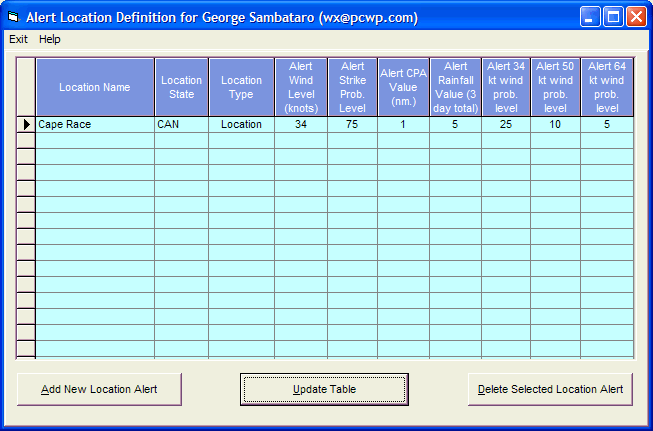
11. If you would like to setup Email alert criteria specific to a storm's forecast affect on a location, select "Specify Location Dependent Alerts". Here you may identify locations of interest and setup 3 key Alert criteria. Wind Speed, Strike Probability, Forecast rainfall and Closest Point of Approach. If you would like this user to receive an Alert Email when the forecasted wind speed for this location is greater than a certain value, then indicate that wind speed. If you would like this user to receive an Alert Email whenever the strike probability is expected to exceed a certain value, then indicate that strike probability value. Finally, If you would like this user to receive an Alert Email whenever the storm is forecast to pass within a certain number of nautical miles of a location, then indicate that value. An example of specifying Alert Email criteria for Hilton Head Island is shown below. Note that if the wind is expected to be greater than 40 knots OR the strike probability is greater than 25% OR the storm is expected to pass within 100 nm OR the forecast rainfall is greater than 3", the Alert Email Criteria would be satisfied.
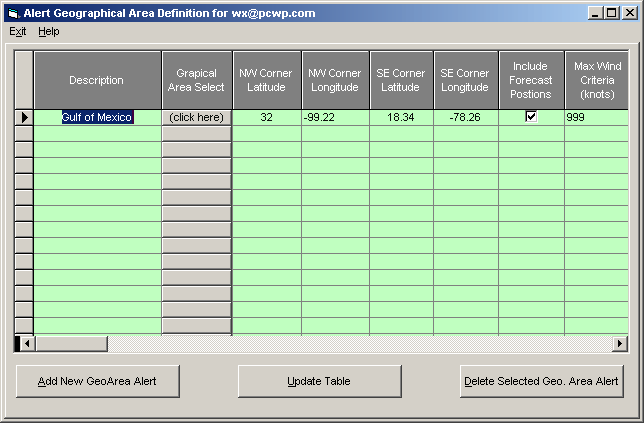
12. If you would like to setup Email Alert criteria specific to a geographical area, then select "Specify Geographical Dependent Alerts". Here you may identify geographical areas of interest and setup 2 key criteria parameters. The 2 parameters, in addition to the definition of the geographical area, are whether to include storms forecast positions and and at what wind speed should the criteria be satisfied. This may be clearer with an example. If a user would like to send Alert Email messages whenever a storm is forecasted to be in the Gulf of Mexico with wind of 64 knots or greater they would define the approximately area of the Gulf of Mexico and select "include forecast positions" and set the Max Wind Criteria at 64 knots. See example below.
At this point, your Alerts have been defined. The only other thing that you might want to consider is how you are going to receive your HURRTRAK ONLINE updates. If you truly want Alert Email's to be sent unattended then either schedule your HURRTRAK ONLINE updates or if you use the Internet, specify automatic polling in the HURRTRAK ONLINE Preferences, Automatic Polling Tab.
If you would like to initiate Alert Email manually you can do this from the main menu reports option. It is suggested that you use the manual method the first few times until you become familiar with automated Alert Email. If the criteria are not setup correctly, you have the potential to unintentionally send out a multitude of Email messages.
When viewing Emailed reports that has column type data, the receiver must change his viewing font to a non-proportional type (courier for example).