Location Import Utility
The Hurrtrak Advanced system includes a location / location
group import utility. This program allows
you to import your organizations locations as well as the ability to automatically
associate them to a location group.
The utility is accessible from the START PROGRAMS menu –
Hurrtrak Advanced program group. Select “Run
Location Import Utility”. It is best
if the main tracking program is not running at the time this utility is used.
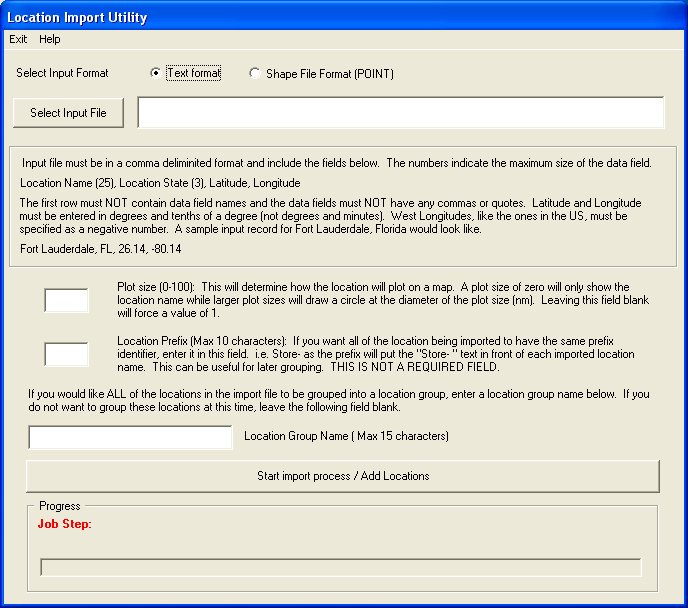
If selecting a comma delimited input file, the following screen
and field are presented.
Plot Size: If you want to set the plot size to a certain value
for all locations, specify it in the plot size field. It will determine how the location
will appear on a map. A plot size of zero will only show the location name while
larger plot sizes will draw a circle at the diameter of the plot size (nm). Leaving
this field blank will force a value of 1.
Location Prefix: If you want all of the location being imported to have the same prefix identifier, enter it in this field. For example the prefix "Store-" will put this in front of the name of each imported location name. i.e. a location name 1234 will be loaded as "Store-1234" . This is not a required field.
If you would like ALL of the locations in the import file to be grouped into a location group, enter a location group name in that field. If you do not want to group these locations at this time, leave the location group name field blank.
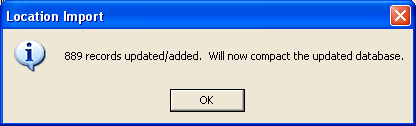
When the import is complete the following verification message
is displayed.
Finally, the next time you go into System Maintenance – Location Maintenance, the system may ask if you want to calculate roughness indices for these locations. Reply Yes to do so.. it may take a few minutes to complete.

If the input data file is a point type Shape file, the following
screen is presented.
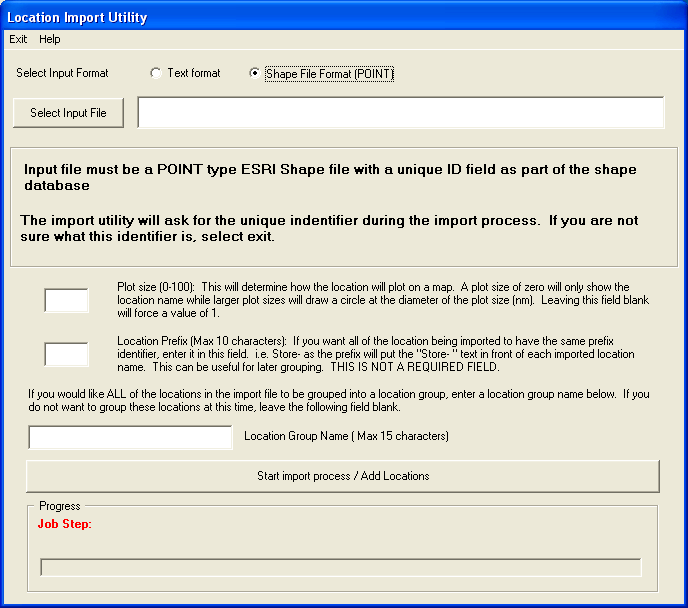
The
data fields are identical to the comma delimited input file method however an additional
selection screen is presented during the import.
It displays the data fields within the point shape file.
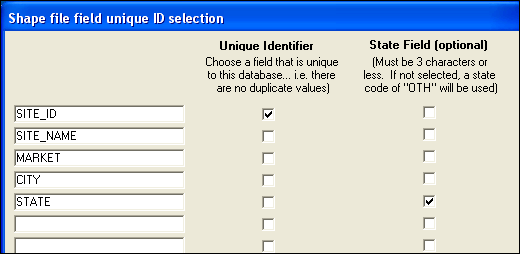
Here
you must identify the unique ID field and optionally the State data field.
When identified, select “continue” and the locations will be imported
as described with the comma delimited method above.