Fixed Tracking Chart Tab
Description:
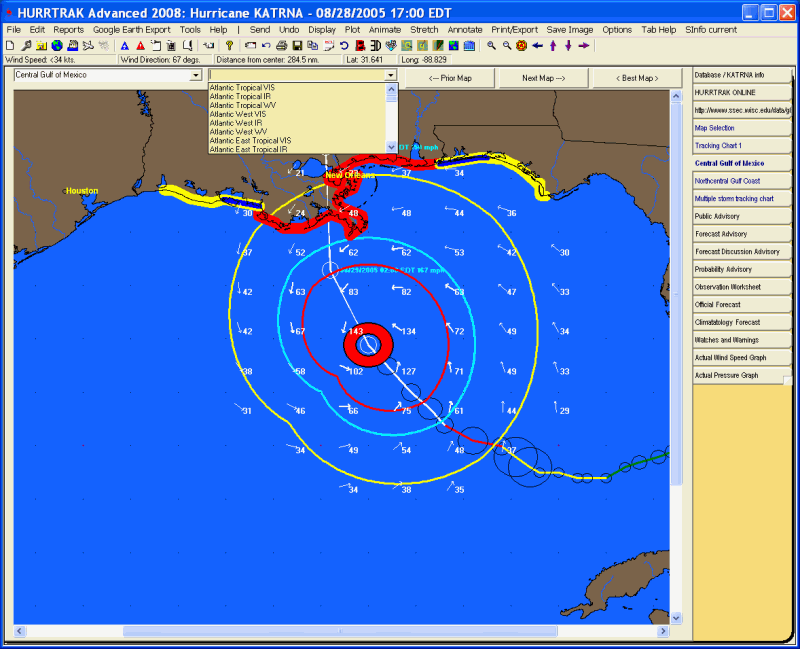
This tab displays one of the many fixed area system tracking charts. These
include any custom maps created by the user. There are 3 "favorite"
tracking chart tabs available to the system.. one of which is a "multiple storm"
tracking chart. Many
storm tracking and analysis functions are available from here including
the ability to plot a track on a satellite image or
a radar plot.
Tab Created by: Always there when a storm is loaded unless specified otherwise by User General Options.
Tab Close Allowed: No
Functions Available:
Menu/Toolbar:
Standard System Menu Functions
TOOLBAR Options Available:

Plus Sign - This option zooms in and re-plots the map.
Minus Sign - This option zooms out and re-plots the map.
Bullseye - This option centers the map on the storm at the current zoom level.
Left Arrow - This option pans the map to the west and re-plots the map.
Up Arrow - This option pans the map to the north and re-plots the map.
Down Arrow - This option pans the map to the south and re-plots the map.
Right Arrow - This option pans the map to the east and re-plots the map.
Miscellaneous:
The
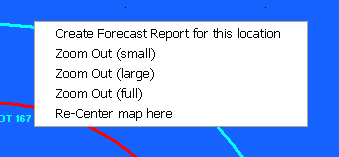
user can zoom in by rubber banding an area on the screen. Other pan and zoom options
are available by right clicking anywhere on the map image.
Other:
Point and Click Report - If you right click anywhere on the tracking map, near the forecast path, you have the option to create an impact report for that location.
Map list - This dropdown list (left) displays all of the "fixed" tracking charts. The user can select the map they would like to display.
Satellite/Radar list – This dropdown list (yellow) displays all of the satellite, sea surface temperature (SST), and NWS Radar images that are available for overlaying storm tracks on top of. This list is maintained by PC Weather Products and requires a HURRTRAK Online subscription to make active. Upon selection, the image is loaded from a 3rd party internet source and then storm tracks may be plotted on top of it. Note.. Any plots that flood an areas.. such as a forecast track error or wind band analysis will overlay the image behind it. It is suggested that you do not use these type functions. See example of a Satellite Image chart.
Next Map - This option will display the next (sequential) fixed area map
Prior Map - This option will display the prior fixed area map.
Best Map - This option selects the smallest scale map that has the storm's latest position on it.
Tips:
Using
the Next or Prior Map command buttons after being on the BEST map, will display the
first map in the sequence (full area map).
You can specify how many favorite tracking charts you would like to have available in the user general options.
The multiple storm tracking chart tab is special in that it is NOT refreshed when a new storm or database is loaded. This allows the user to plot more than one storm track on it.
The satellite image and radar drop down list is maintained via HURRTRAK Online and may change during the hurricane season. The images are downloaded from 3rd party internet sites which are generally very reliable.. but occasionally they may not be available.
Finally, since there are hours between NHC advisories, radar images will typically be for more current time than the hurricane observation data. i.e. Radar and hurricane data will not always be in sync.