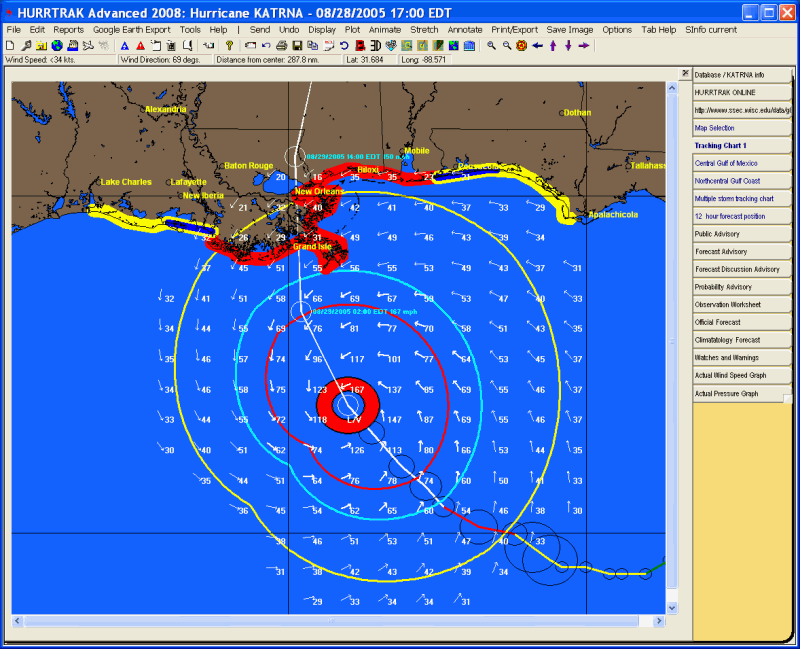
Variable Tracking Chart Tab
Description: This tab displays the map selected from the map selection tab or when a map is re-plotted due to pan and zoom.. Many storm tracking and analysis functions are available from here. Up to three of the variable tracking chart tabs are available. There maps are dynamic and are not part of the system's permanent (fixed/favorite) tracking chart selection.
Tab Created by: Selecting a tracking option from the Tracking Chart Map Area Select Tab
Tab Close Allowed: Yes
Functions Available:
Menu/Toolbar:
Standard System Menu Functions
TOOLBAR Options Available:

Plus Sign - This option zooms in and re-plots the map.
Minus Sign - This option zooms out and re-plots the map.
Bullseye - This option centers the map on the storm at the current zoom level.
Left Arrow - This option pans the map to the west and re-plots the map.
Up Arrow - This option pans the map to the north and re-plots the map.
Down Arrow - This option pans the map to the south and re-plots the map.
Right Arrow - This option pans the map to the east and re-plots the map.
Miscellaneous:
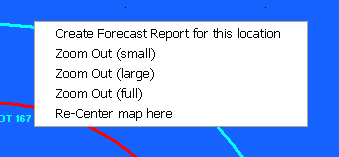
The
user can zoom in by rubber banding an area on the screen. Other pan and zoom options
are available by right clicking anywhere on the map image.
Tips: