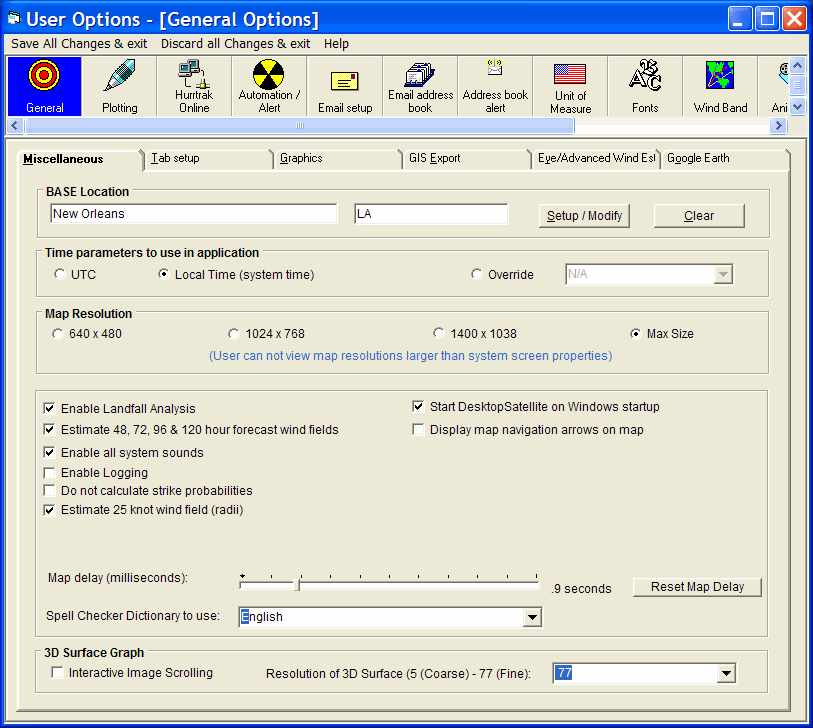
This option controls whether the user wants visible map navigation aids for panning a tracking chart map. This can be set based on user preference but is not enabled by default.
This option allow the system to estimate the wind speeds around the storm down to 25 knots rather than the 34 knot wind radii that the National Hurricane Center provides. This will be reflected in the wind pattern, wind field analysis and impact reports.
This option controls the delay in seconds that the system will use when plotting a new panned or zoomed map. Depending on your system's video capabilities, you may have to adjust this slightly upward to allow the system time to plot the land masses correctly.
Selecting this option disables all strike probability calculations in the system. This may need to be disabled on future Windows operating systems (64 bit).
Selecting this option allows the DesktopSatellite tray program to run. It will not initiate until the next Windows restart.
This option sets the spell checking dictionary to the language desired. No spell checking can also be selected.
A user can identify a single "Base" location which typically represents the users operating location. It can be a "location", County or Zip Code. This location is used to automatically update the main windows status bar information and to display range rings.
Identifies the time zone the user would like to use. UTC represents the global standard that is used by the NHC in their advisories and is time zone independent.
In addition to the pan and zoom type maps, the system includes 3 sizes of tracking charts... 640 x 480 pixels, 1024 x 768 and 1400 x 1048 pixels. You have 4 options. If you would like to work with the smaller, less detailed charts then select the 640 x 480 option. If you would like to use larger, more detailed charts then select the 1024 X 768 option. If you have a large screen capable of handling 1600 x 1200, you should select the 1400 x 1048 option. Finally if you change screen resolutions often and would like to use the largest available at all times then select the 3rd option. Keep in mind that the HURRTRAK system will not display charts that are larger then the screen resolution you are working in. I.E. If you select 1400X1048 and only have your Windows screen setting at 1024 X 768, then the HURRTRAK system will use the 1024 X 768 charts.
This option when selected will force the 3D wind surface graph to be replotted every time its horizontal or vertical "view" is changed by the scroll bars. When this is off, then the OK command button must be pushed to replot the graph. Note: It is recommended that you leave this off unless you have a very fast processor or have the resolution of the graph set low (<20).
This option allows the user to control the level of detail of the 3D wind surface graph. Higher values will provide more detail but also considerably impact performance of the 3D graph.
This option "turns on" system logging. It reports on the status on incomplete automation options as well as start and ending times of sessions.
Selecting this option forces the system to recognize when the storm is forecast to make landfall and make adjustments to the official forecast. Landfall is defined as the first hourly position over land that is followed by at least 4 more overland positions. CAUTION: Please be aware that when you use this feature you are changing the official forecast data. The assumption that a storm will maintain it's intensity until landfall is not always valid. For more information, see Common Questions.
Selecting this option forces the system to estimate the 34 and 64 knot wind field for the 48, 72, 96 and 120 hour forecast position. A hierarchy of algorithms are used to do the estimate. CAUTION: Please be aware that when you use this feature you are adding information to the official forecast data. Estimates are just a guess based on past patterns of wind fields and should not be relied on.
This option allows the user to enable / disable all system sounds.
General Options
This option allows the user to setup general user parameters. Point and click on the options shown above for a description of what they control.