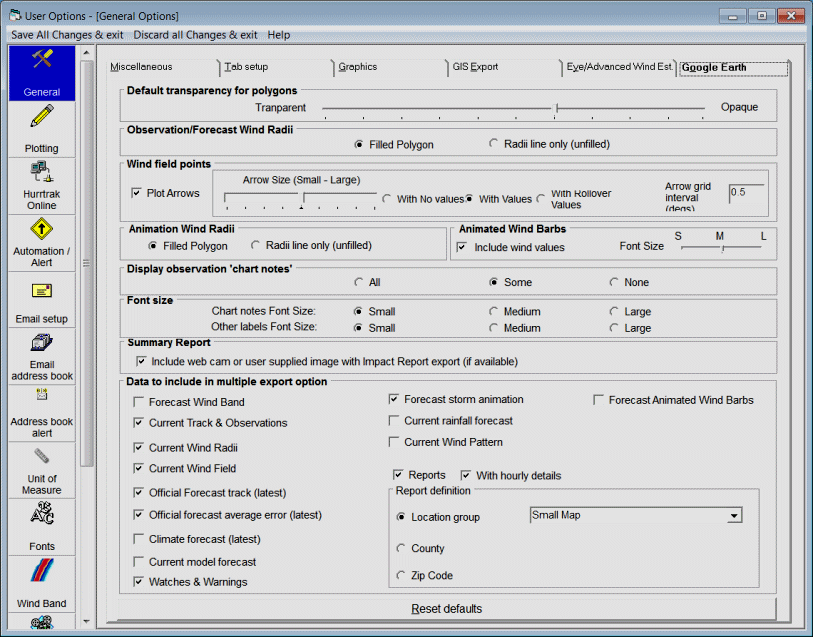
This
determines if wind values will be plotted by Google Earth and the size of the font
used to plot the wind values.
This option determines is either web cam or user supplied images are included when exporting summary impact report information to Google Earth. See Webcam/Location images for more information.
This set of options has to do with the Google Earth "ALL Selected Outputs function". This feature allows multiple GE exports be created with a single action. All checked options will be exported while unchecked ones will not be. We do not suggest you select all outputs unless truly necessary.
This controls the font size of other labels displayed by Google Earth. They can sometimes be adjusted within the Goggle Earth interface.
This controls the default font size of the chart notes as displayed in Google Earth.
This allows the user to control the amount, if any, of the chart notes to appear next to a storms observation points. ALL will obviously show all of them, SOME will show every other one and NONE is self explanatory. This does not apply to forecast points.
This determines if exported wind radii during animation will appear as an outer ring only(unfilled) or as a filled area (filled polygon).
One of the export options is to export a grid of observed or forecast wind points across a storm. The user has the option of display wind barbs which represent the wind speed and direction and or the values at each grid point. You can also select to only have the wind speed value appear when you roll your mouse over the point. It may be best to experiment with this setting to determine what you prefer. Since performance may be somewhat impacted with plotting all of the values, the default is mouse activated values.
This determines if exported wind radii appear as an outer ring only(unfilled) or as a filled area (filled polygon).
This determines how transparent polygons will appear when exported to Google Earth (KML). Polygon data includes such data as wind radii and wind bands
General Options
This option allows the user to setup general user parameters. Point and click on the options shown above for a description of what they control.