
Toolbar
The
Hurrtrak System includes extensive use of Tool/Command bars.
They are in integral part of the system and allow users to complete their
tasks quicker.
In
the main tracking program, there are 2 rows of toolbars... the first row displays
functions that are not dependent on which tab/function is being displayed.
They include things like Setup System/user preferences, Open Database, Open
Storm, Reports and many others.
The
2nd toolbar row ARE functions that are relevant only to the displayed
tab. So if you are on a text tab, like Public
Advisory, only buttons related to that type of tab are shown (Email, Email Outbox
functions, print, save, copy, font).

If you are on a tracking map tab many more buttons become available.


All
of the buttons ”offer” tooltip explanations of what they do by simply ”floating”
your mouse icon over the icon. This is the
best way to learn what they do.
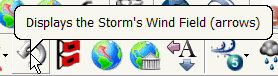
As
mentioned in the Setup Application Appearance topic you
can also customize the size and color of the toolbars.
Toolbar
Advanced Topics:
The
user has the ability to move/resize the toolbars as well as customize them.
By ”grabbing’ the toolbar you can move it to another portion of
the desktop to give you a view similar to the following.
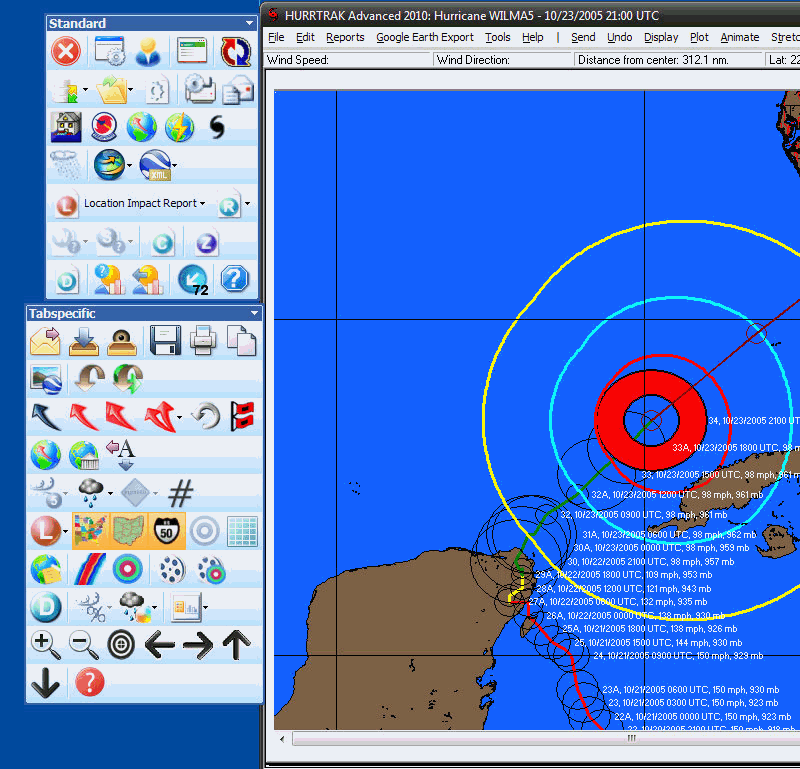
You
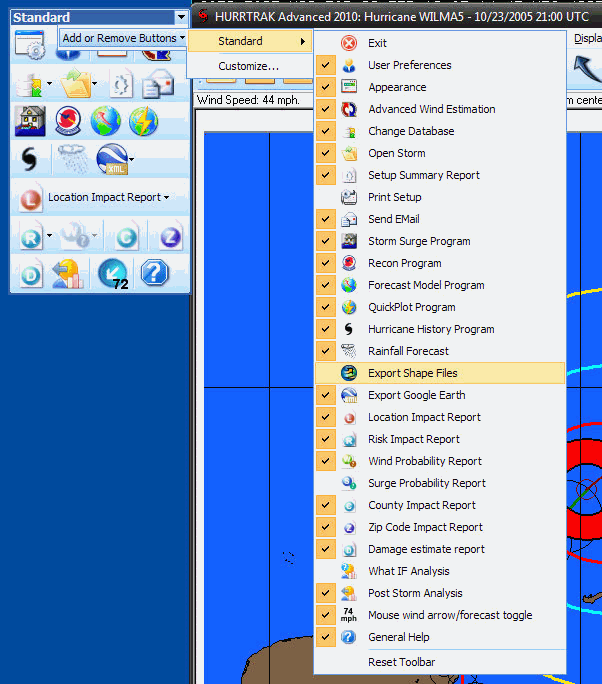
can also, customize the command that will appear, the icon image, descriptions and
look/feel by selecting the toolbar options at the right end of the toolbar.
This is only recommended for advanced users familiar with these
type of functions. If you do change
them and want to go back to the original settings, there is a ”reset” toolbar
option within this function, which will reset them to the install defaults.
We highly recommend that you become familiar with each of the Toolbar Commands as they make the system much easier to use.