The
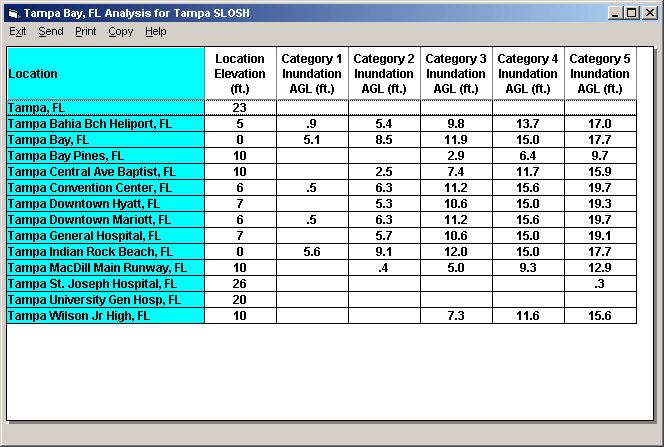
SLOSH REPORT show the potential inundation levels (ft ASL) for specific locations.
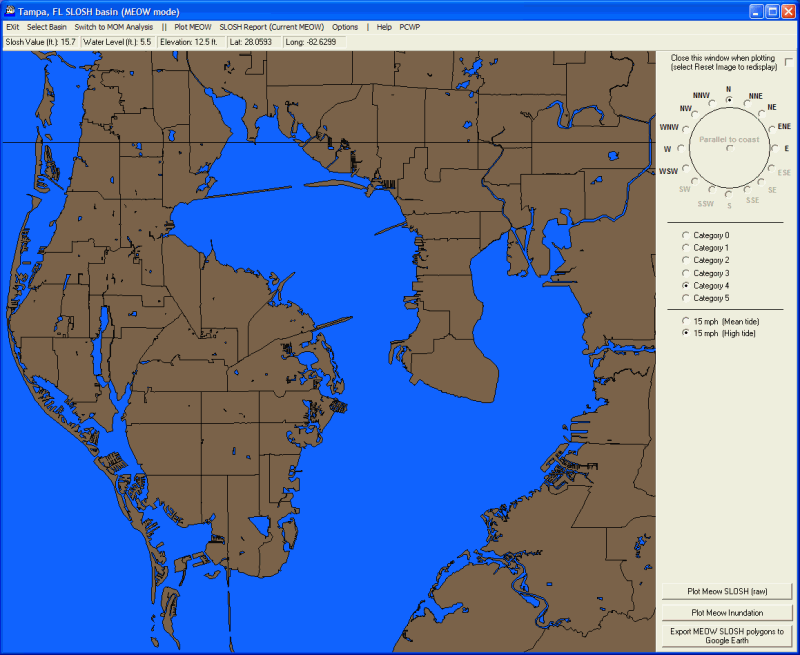
It can be run in both MOM and MEOW mode. The
only difference is that while in MEOW mode, the report will only include locations
“within” the currently selected basin’s area.
The report above is an example of a report for some location in the
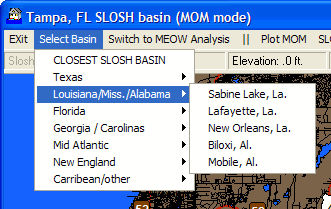
In order to create
a Slosh Report, the user must do the following steps.
- From
System
Setup, location maintenance, define a SLOSH location group associating it
to a SLOSH basin.
- Associate
specific locations to this location group via location
group maintenance.
- If
desired, specify the elevation for the locations added to the location group
via location
maintenance. Otherwise the location elevations will be estimated using the
supplied elevation database. If known, we recommend you enter the actual elevation
of the location.
- From
SloshView,
select Slosh Report menu item and select the desired location group.
OR
From
SloshView, select SLOSH report for any location group.
Make sure that the location in this group have been accurately defined for
location and elevation.
In
MOM mode, locations without designated SLOSH basins will be assigned one by the
system based on distance (i.e. the system will pick the closest one).
Caution must be exercised when viewing the results of this data as the SLOSH
analysis errors increase as the locations distance from the SLOSH basin “center”
increases.